
Pixelate faces and hide parts of an image
Pixelate faces, licence plates, text or other areas with three mosaic styles, blur or an opaque block. The image is processed on your device and you can save a new JPG, PNG or WebP copy when finished.
Choose an image
Drag over the image to mark what you want to hide. You can move and resize each area.
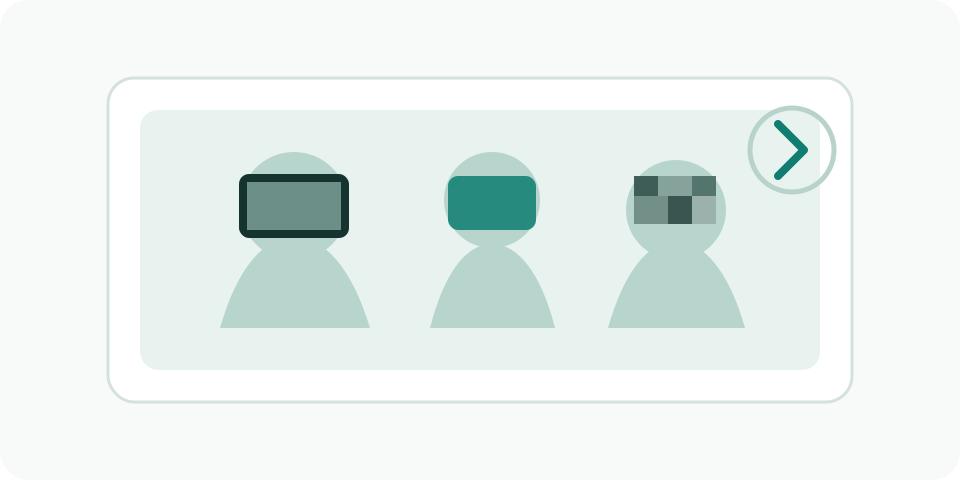
Editing options
Opaque block
The recommended mode replaces the area with opaque pixels. Pixelation and blur are also available for visual concealment.
Original resolution
The preview may be smaller, but export uses the original dimensions.
Local process
The image is processed on your device. Rusadix Tools does not receive a copy of the file.
What to review before sharing
The tool creates a new image with the redacted areas baked into its pixels and checks format and dimensions before allowing it to be saved. You can keep the original format or choose JPG, PNG or WebP. For truly sensitive information, an opaque block is more cautious than pixelation or blur.
Frequently asked questions
Can the block be removed later?
The created copy bakes the change into the pixels of the new image. No separate editable layer is saved.
Does it lose resolution?
Not in dimensions: the export keeps the original width and height.